The model
The model
Each Reminders feature has one job. Your phone or tablet already has more knobs than GTD needs. This page is the map; setup is the tapping.
Lists
Put these in a list group called GTD, so shopping and shared family lists can stay outside the system.
| List | What goes in it |
|---|---|
| Inbox | Raw capture. Nothing here has been decided yet. |
| Projects | Outcomes you are committed to, grouped into sections by area of life. Current actions hang off each project as subtasks. |
| Next | A single action with a successful result, when that action is the whole commitment. Tagged the same way as project subtasks. |
| Someday | Ideas and projects you might want later, and are happy to forget until the review. |
| Weekly Review | A standing checklist. It is a tool, not a place you store work. |
Context lists are smart lists, described below. Waiting is a smart list too.
Groceries stay in Apple’s Grocery list. Milk is shopping. “Do the grocery shop” can be an out action if you need it on your plate as a commitment.
Reference material goes in Notes or Files. A reminder can hold a link to it. The document itself is not a task.
Goals, vision, and purpose sit in one Notes note. The weekly review opens it. Reminders stays the place for actions.
Projects and subtasks
A project is any result that needs more than one step and that you have agreed to finish.
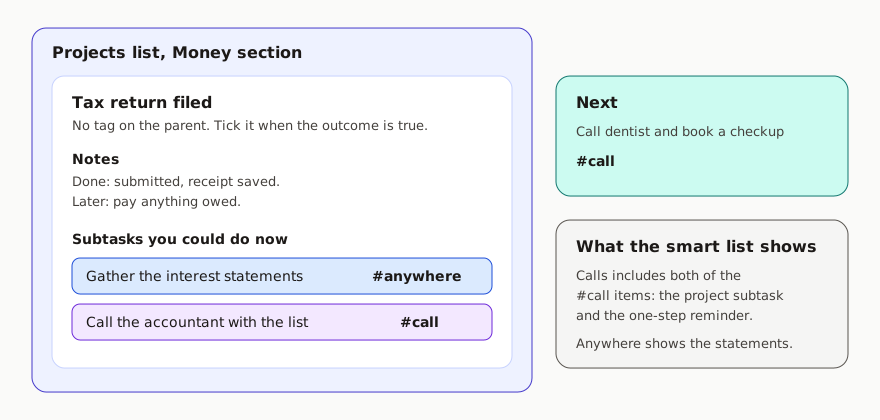
- The title is the outcome, in the done form: “Tax return filed”, “Kitchen tap fixed”.
- The notes are the picture of done, plus later steps you cannot take yet.
- The subtasks are only the actions you could do now, in parallel if they do not block each other. One is normal. Three is already a lot.
- Each subtask gets exactly one context tag.
- The project reminder itself gets no context tag. The parent is the outcome. The subtasks are the work. Tagging the parent as well puts a second, vaguer row into your smart lists.
When you finish a subtask and the outcome is still open, add the next subtask. Take it from the notes if you wrote the later steps down. That promotion is a five-second clarify, usually done in the weekly review, or in the moment if you know the next step.
Completing the parent reminder also completes every subtask under it. Tick the parent only when the outcome is actually done.
One-step commitments go in Next, with a context tag, as ordinary reminders. A fake project called “Single actions” is easy to complete by accident, and completing it would clear every loose action under it. Next avoids that trap, and the context smart lists include it, so those actions show up in the same places as project subtasks.
The four context tags
Type them in lowercase. Reminders tags are a single word. Create them by adding them to a reminder; the setup guide does this once so the smart lists can find them.
| Tag | Meaning |
|---|---|
anywhere |
You can do it with what you already have on you. This is the default. |
home |
You need to be at home. |
out |
You need to be out in the world, or at a specific other place. |
call |
You need a live conversation: phone or video. |
Tag the constraint. An action you could do on the sofa is anywhere, even if you will probably do it at a desk. An email is anywhere. A phone call you have to place is call.
Add a location to an out action when arriving or leaving a place should notify you. The location is the nudge. The tag is what makes the list.
Smart lists are the contexts
You work from these lists. They are saved filters, so you maintain tags on the actions and the lists take care of themselves.
Each context list includes reminders that match all of:
- the one tag for that context
- the lists Projects and Next
| Smart list | Tag |
|---|---|
| Anywhere | anywhere |
| Home | home |
| Out | out |
| Calls | call |
| Waiting | waiting |
A smart list can show the project with its subtasks underneath. You see “Tax return filed” and, under it, the action you tagged. Tick the action. Leave the project ticked only when the outcome is done.
Inbox, Someday, and Weekly Review are excluded because the list filter names Projects and Next only. That is deliberate. A someday idea must not appear on Home just because you were standing in the kitchen when you thought of it.
Built-in lists you keep visible:
- Today - dated items whose day has arrived, plus overdue ones
- Scheduled - anything with a date, so you can see deadlines coming
- Flagged - the few actions you have chosen for today
Waiting
waiting is a status tag. While an action is blocked on someone else:
- Change its tag from the context to
waiting. One tag, still, so it drops out of Home, Out, Calls, and Anywhere. - Title it so the person is obvious: “Sam: signed contract”.
- Turn on When Messaging for that person if a nudge in Messages would help.
The subtask stays under the project. When the thing arrives, put a real context tag back on it, or add the true next action and complete the waiting one.
Dates, flags, and priority
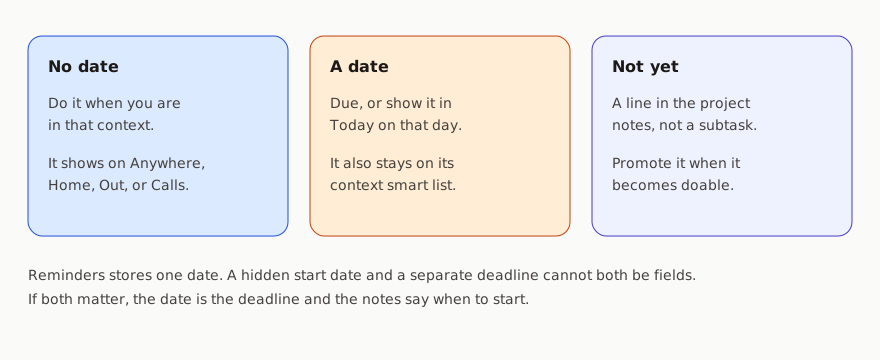
Reminders has one date field. This system uses it like this:
- No date means “do it when I am in that context”.
- A date means “this is due, or I want it in Today on that day”. It still appears in its context smart list before then, so you can do it early. Today and Scheduled are what stop a deadline from depending on your memory.
- Steps you must not start yet stay in the project notes. They are not subtasks, so they stay off the smart lists until you promote them. That is deferral.
There is no separate start date that hides an action until Thursday and also tracks a Friday deadline. If both matter, keep the action visible with the deadline as the date, and write “start Thursday” in the notes. Limits is frank about this.
Flag means “I am choosing this today”. Three flags is plenty. Clear them when the day is done, or during the review if they have gone stale.
Priority stays unset. Use High only when missing the action has a real consequence you might otherwise skim past. Medium and Low are left unused so priority does not become a second tagging system.
Sections
Sections are for areas on the Projects list: the parts of life that have no end date. A starter set:
- Work
- Home
- Money
- Health
- People
Rename them until they sound like your life. Four to seven is enough. Delete empty ones. Areas are how you scan projects in the review. They are not contexts, and actions do not get an area tag as well as a context tag. The section of the parent project is the area.
What you open
| Moment | Open |
|---|---|
| Something just occurred to you | Inbox, via Siri or the share sheet. Do not tag it yet. |
| You are about to do something | The smart list for where you are. Anywhere if place does not matter. |
| You need a short list for today | Flag up to three actions, then use Flagged or Today. |
| You are planning the week | Projects, then the weekly review checklist. |